
What Anti-dirt does
Text-related content is usually handled with NLP models. But training an NLP model takes time, and models make mistakes. So the idea behind Anti-dirt is to find sensitive words with text matching that is fast, accurate and efficient.
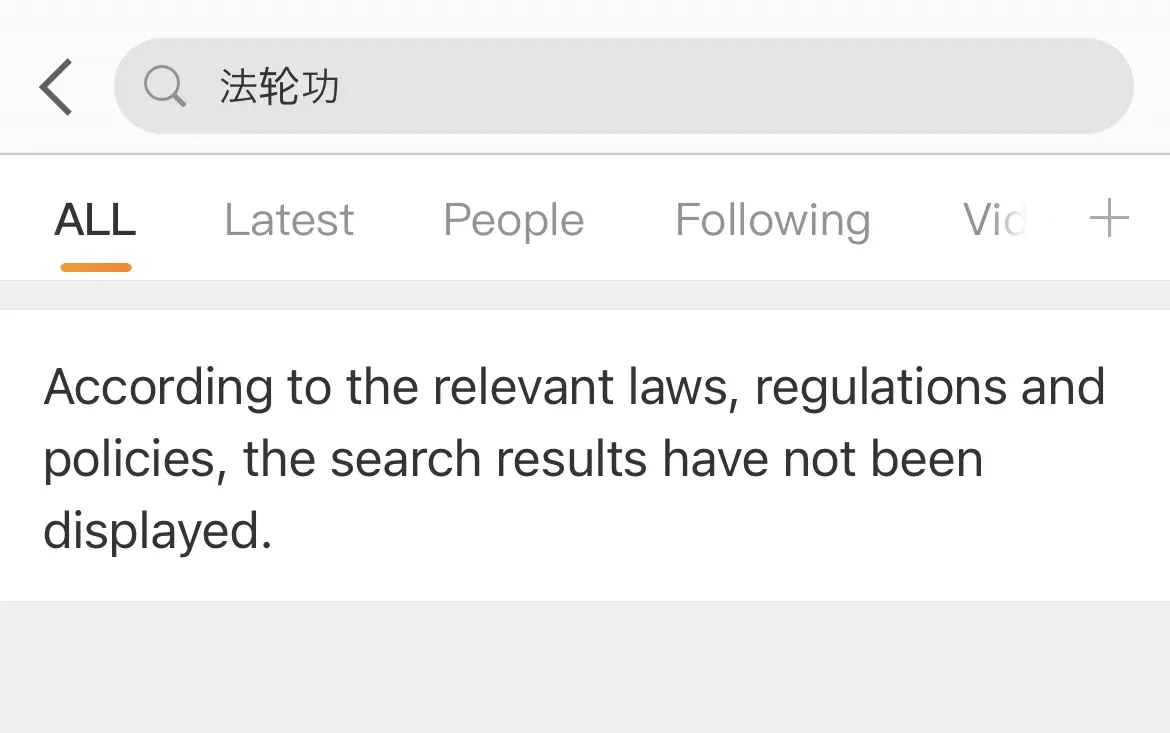 The keyword cannot be searched
 The keyword is masked
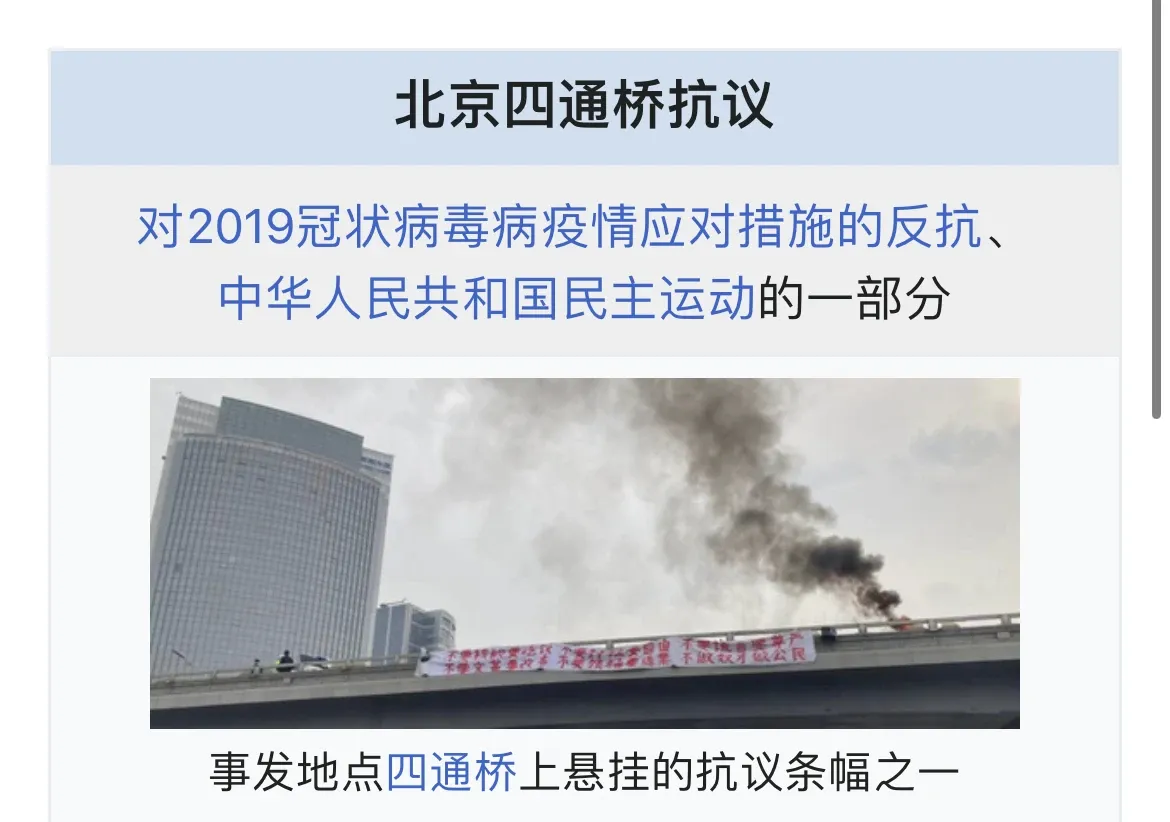
 Posts containing the keyword are taken down
Two kinds of users
Anti-dirt has a stable group of users and a history of more than three years. Its users fall into two main groups: the people who create sensitive wordlists, and the people who use them.

Wordlist creator
Operates and maintains the platform's core wordlists
Basic info
- Education: bachelor's degree
- Device: MacBook Pro 13-inch
- Hours: weekdays 10:00–19:00
Work objectives and scenarios
Add keywords on demand
- Collect wording needs from various channels (the OWLS platform, online bad cases and so on) and add sensitive words.
- Evaluate how the content and the matching method affect what is online, to guarantee the quality of the words.
Daily wordlist work
- Day-to-day consulting, proposals and promotion for onboarding new businesses.
- Manage feature-level access permissions
Optimize the wordlists
- Based on online data, optimize and update the details of the words in a wordlist: tags, exemption words, combination words and so on.
- Special needs for wordlists (June *, the 20th * and so on)
- Optimize the wordlists according to business needs

Wordlist user
Safety strategy development in the content safety team
Basic info
- Education: master's degree
- Device: ThinkPad
- Hours: weekdays 10:00–19:00
Work objectives and scenarios
Get permission for business wordlists
- Apply to the wordlist manager for permission
Monitor online data and collect feedback
- Monitor how the wordlists perform online and collect user feedback about sensitive content
- Keep the chance of entering the review process low
Online incident investigation
- Project review, retrospective
- Based on misses and mistakes, give requirements to the wordlist managers.
Planning the platform redesign
Based on user feedback, I worked out the redesign strategy for the next step.
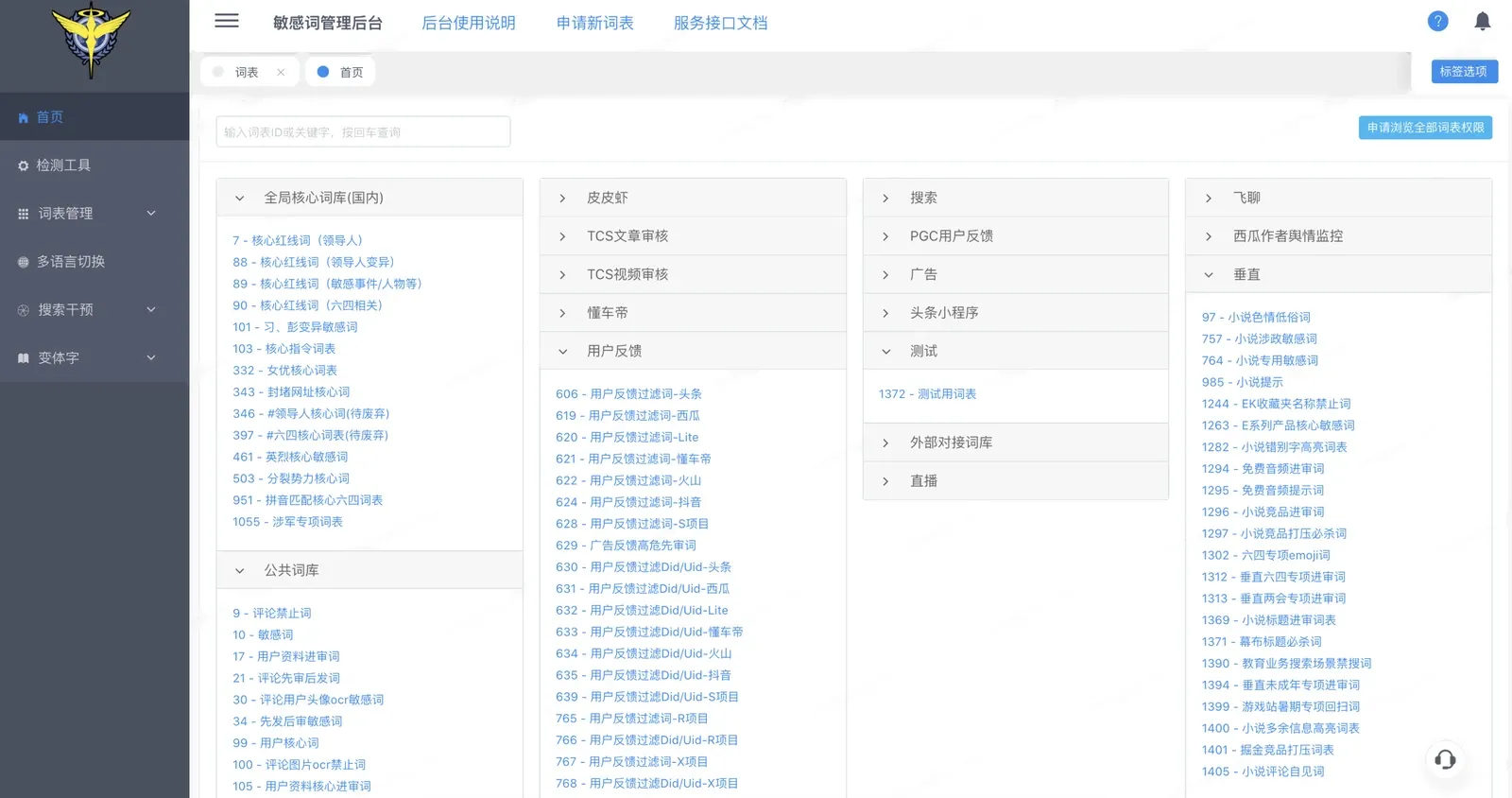
The previous version:
- Feature structure: for some product lines, features were hard to use because of safety restrictions.
- How to use it: new users found it hard to understand how the platform worked.
- Features nobody knew: some features had been built long ago, and nobody could explain them any more.
Restructure
Problems of the previous version
Design solutions
Some processes are blocked
- Special concepts are not explained clearly.
- Required and optional form fields are unclear, so users often have to redo steps.
- Some error messages are missing, which adds extra cost to understanding the process.
- Reduce the cost of understanding the copy and unify the copy across the platform.
- Strengthen feedback on actions and add error-preventing design to improve efficiency.
Low operating efficiency
- Features are weakly separated and flattened.
- User paths are confusing.
- The information hierarchy is weak, and important information does not stand out.
- Feedback on actions is lacking.
- Provide general guides and hints so users have more control over what they do on a page.
- Shorten the paths and remove unnecessary actions.
- Optimize how the interface is displayed and bring information together.
No consistency between pages
- Components of the same kind are used inconsistently.
- Unify the platform's visual elements and interaction patterns.
Start with the most frequently used module
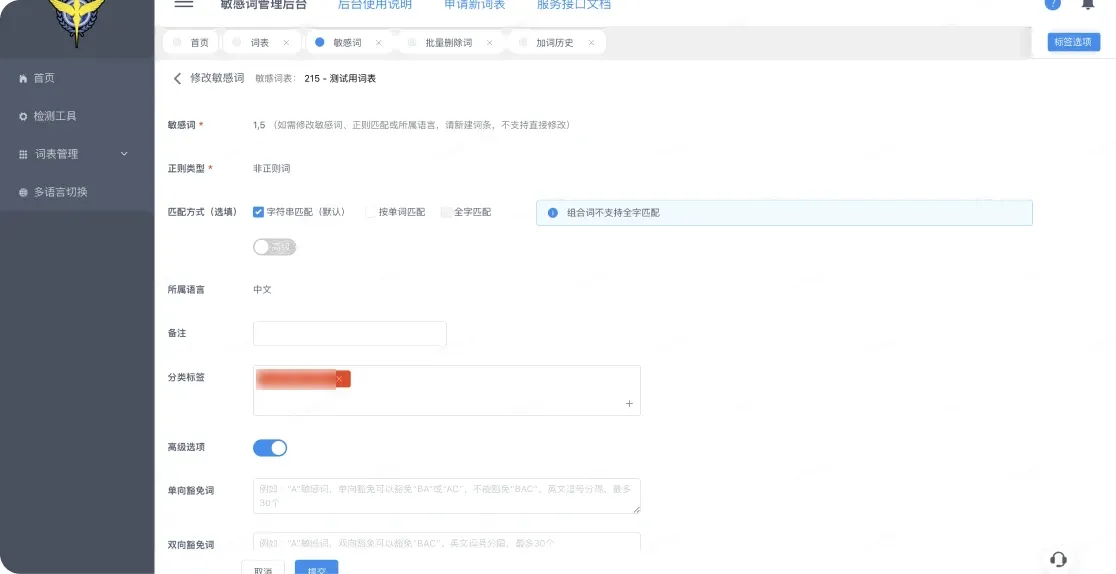
“Add keyword” is the most used feature.
But the previous version had been built in whatever form the back-end engineers came up with, without any research into users’ habits.
User research showed that optimizing this feature would bring the most value. I interviewed four regular users and collected their feedback.
😭 “The whole process is too long for me. Every time I add keywords there are 500 to 1,000 words, and I want to finish in five minutes. But I always have to fill in lots of form fields.”
🤬 “The tagging feature is really hard to use. The tree selector has many layers, and I can’t tell what is under each layer, so I have to expand it again and again.”
🤨 “The right side of the add-keyword page is completely blank, and all the content is squeezed into the left. I don’t like that…”
😃 “Overall it’s fine… I’ve worked here for a year, so I’m used to it.”
What I did to solve the problems
- First, I let users keep doing what they were already doing, to lower the cost of learning how to use the feature.
- Next, I made filling in the form less stressful and more comfortable.
- Then I designed the whole process around their daily work, changed the order of some fields, and made the steps for adding keywords clear.
- Finally, I improved interactions that are small but affect efficiency.

👏🏻👏🏻👏🏻 After launch, I received positive feedback from users.

Four more feature improvements
Variant word generator

Variant words are words that look or sound similar to the original, for example “习近平” and “刁近平”.
Giving users a simpler, more direct solution:
- Help the user create variant words in a few simple steps
- See the created results directly
- Select all, or deselect, with a simple click
Approval center

Visual hints and separated information:
- Visually clarify the different categories of approval tasks
- Tell users about their to-do tasks with a number badge
- Let users see all the information of a task by hierarchy, so they can process it efficiently
- Let users easily see where a task is in its process, and who is in charge of each node
Detection tool

- Designed for people with different goals (detection task manager / detection operator)
- Lets users finish entering the data for detection as efficiently as possible
- Supports both manual input and file import

The detection results page contains a huge amount of information. I organized the important information and emphasized everything users might care about.
Automatically recommending exempt words

In many cases, a hit in machine review is a mistake caused by missing exempt words. The result is sent to manual review, which costs manpower.
However, exempt words are currently generated mainly from the wordlist manager’s own judgement, which consumes manpower and lacks accuracy.
The “automatically recommend exempt words” feature saves the wordlist manager’s effort and removes the risk of content being sent to manual review, helping to keep the balance between machine review and manual review.
👏🏻👏🏻👏🏻 Positive feedback after launch:
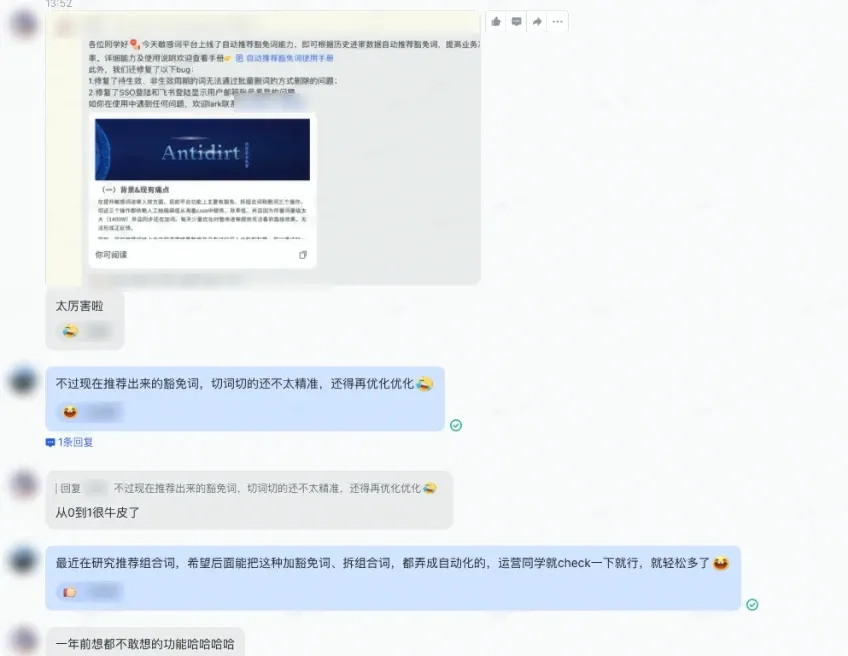
Results after launch
- User rating
- 4.94/5
- UV (unique visitors)
- 270▲
- Less time to add keywords (10.23 min → 8.4 min)
- 18%▼
Highlight
I rebuilt the process of the whole platform, strengthened the main features and toned down the rarely used ones. Overall, the efficiency of using the platform and user satisfaction went up a lot.
Lowlight
Each product line is fairly satisfied with the redesign, but some issues remain. For example, the process on the page for adding new keywords is too long, and important information gets overlooked at the preview step.
In all
The MVP version is released, but B2B products are complex and come with business background, so I need to keep talking with users to get their feedback.